Install CoinBeacon and turn on push notifications
Jordan Ellis
Senior Product Marketing Manager, CoinBeacon
CoinBeacon runs in your browser, and your browser can install it as an app: an icon on your home screen or dock that opens CoinBeacon in its own window. Once it is installed, push notifications bring your alerts to the device even when CoinBeacon is closed.
What installing gives you
There is no App Store or Google Play app. Installing adds app.coinbeacon.io to your device from the browser, which takes about a minute and needs no account.
- An icon and its own window. CoinBeacon opens like any other app, without tabs or an address bar.
- Push notifications on iPhone and iPad. Apple sends web notifications only to sites added to the Home Screen, so on an iPhone or iPad, installing is the only way to get them. On Android and computers they also work in a browser tab.
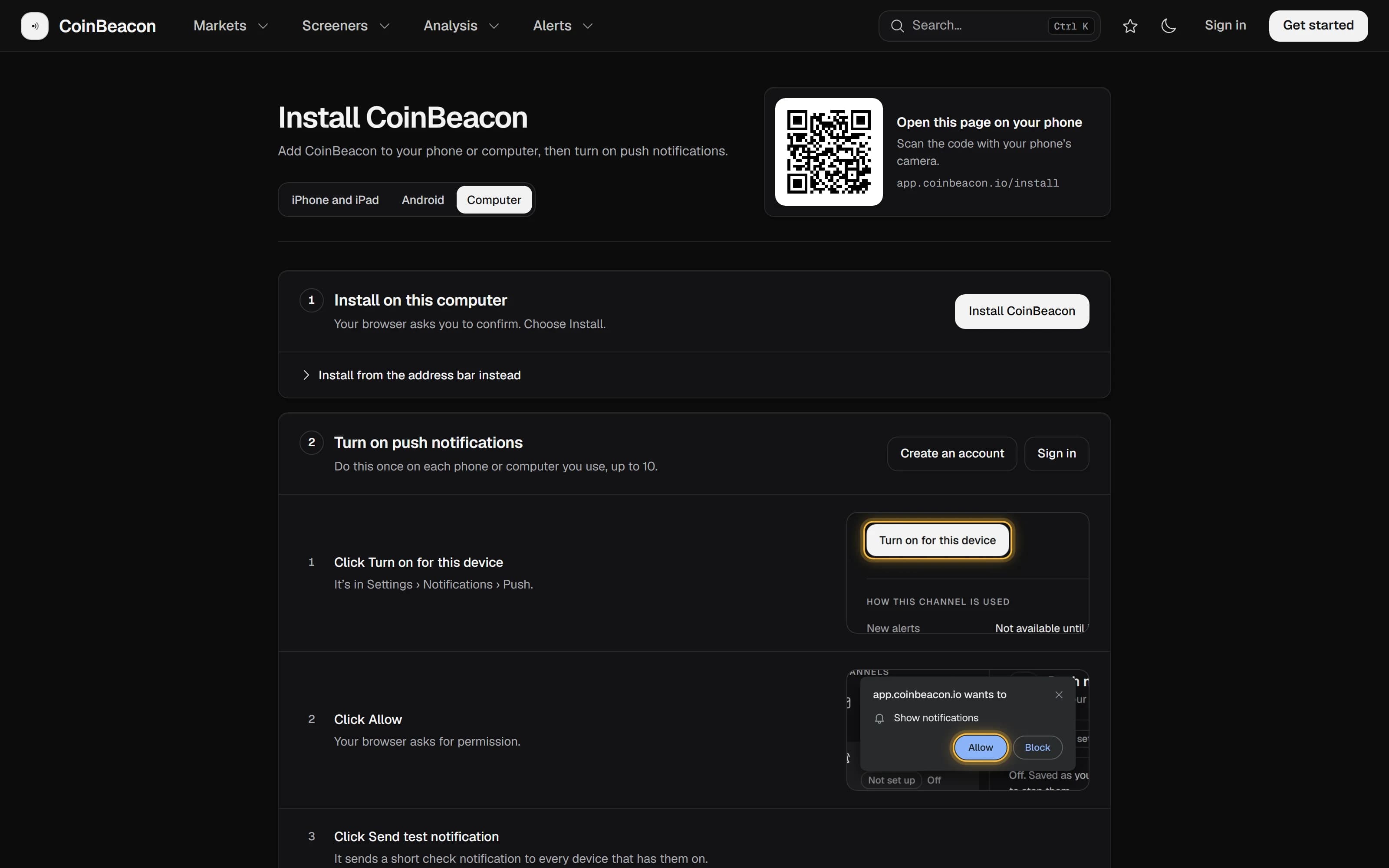
The quickest way is to open app.coinbeacon.io/install on the device you want it on. That page opens on that device’s steps, with a picture of each one, and in Chrome, Edge and on Android it has an Install button that does it in one tap. On a computer it also shows a QR code: scan it with your phone’s camera to open the page there.
iPhone and iPad
Use Safari. These steps take a few seconds.
- Open app.coinbeacon.io in Safari and tap Share. It is at the bottom of the screen on iPhone and at the top on iPad. On newer versions of iOS, tap the ⋯ button first, then Share.
- Tap Add to Home Screen. Scroll down the list if it isn’t in view.
- Tap Add. If you see Open as Web App, leave it switched on.
- Open CoinBeacon from your Home Screen and sign in. The app keeps its own sign-in, separate from Safari’s, so you sign in once there. It remembers you after that.
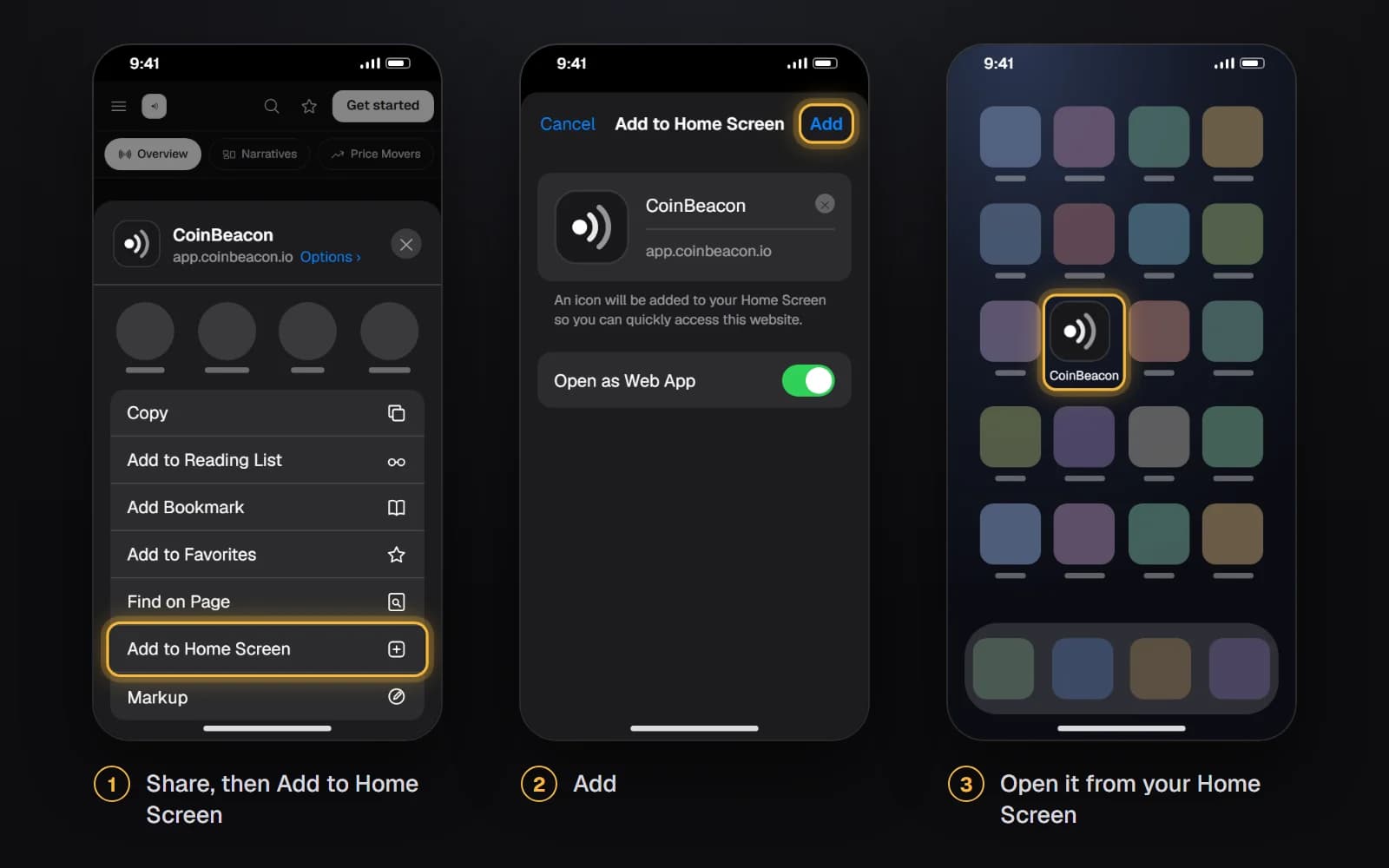
Chrome and Edge on iPhone have Add to Home Screen in their Share menu too. If your browser doesn’t offer it, open the page in Safari. Push notifications need iOS or iPadOS 16.4 or later; you can check in Settings › General › Software Update.
Android
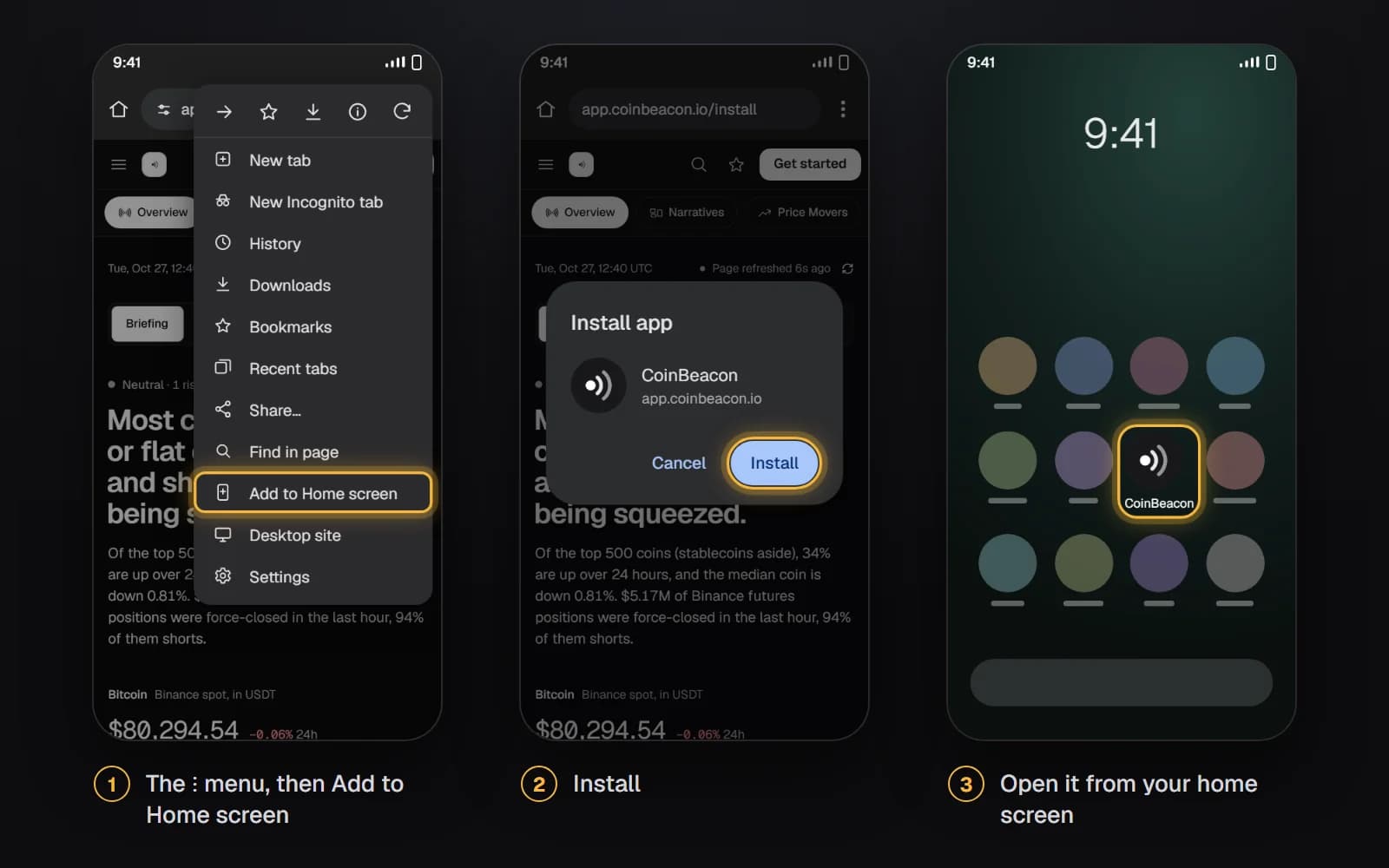
In Chrome, open app.coinbeacon.io/install and tap Install CoinBeacon, then Install. Chrome may also offer it on its own, in a bar at the bottom of the screen. To do it from the menu instead:
- Tap ⋮ at the top right of Chrome. Other browsers keep the same option in their main menu.
- Tap Add to Home screen, then Install. Some browsers call it Install app. In Samsung Internet it is under Add page to.
- Open CoinBeacon from your home screen or app list. You are already signed in: the app shares your browser’s sign-in.
Windows, Mac and Linux
Chrome or Edge
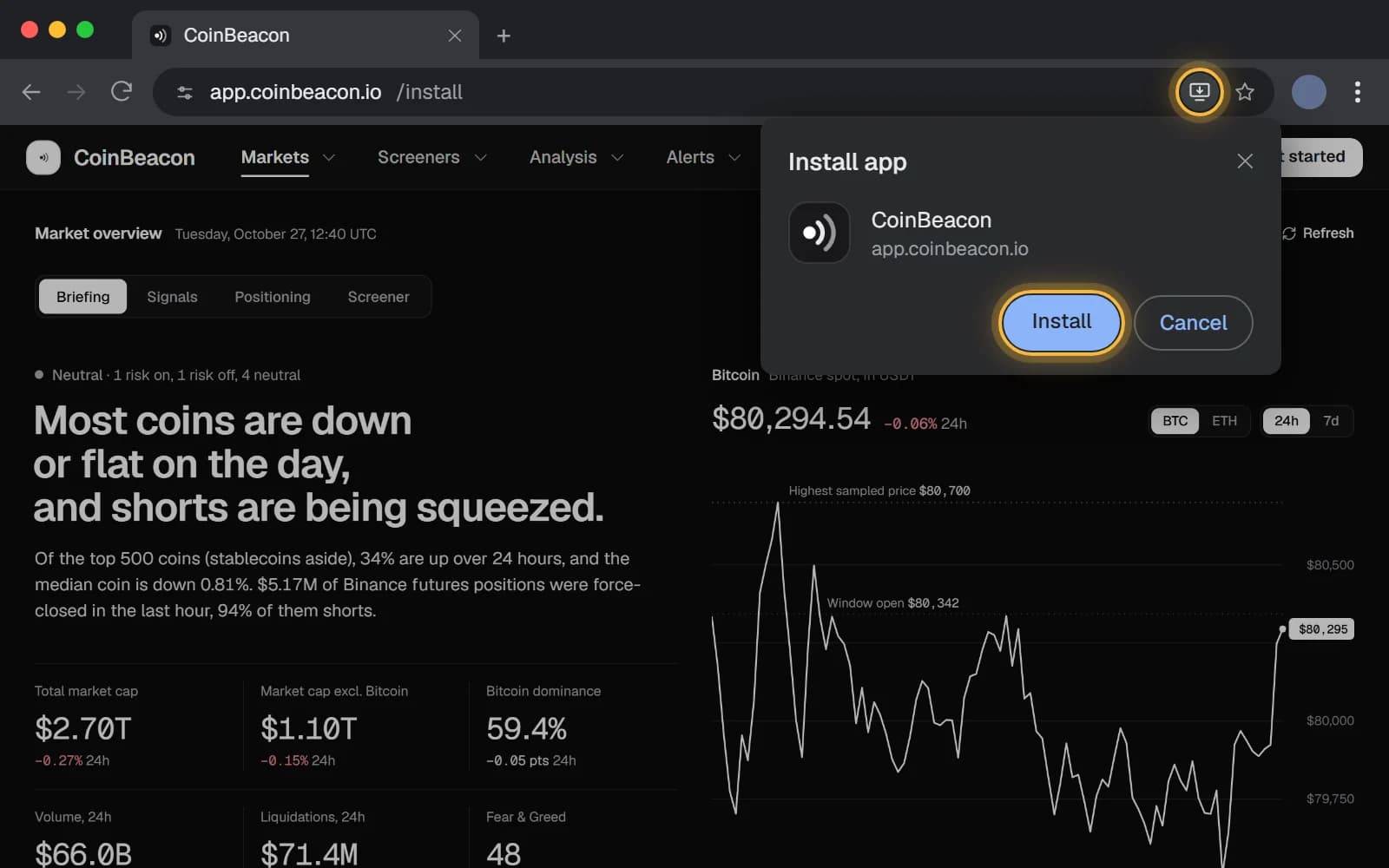
- Click the install icon at the right of the address bar. In Chrome it looks like a small screen with an arrow; Edge calls it App available. No icon? In Chrome, open ⋮ › Cast, save, and share. In Edge, open ⋯ › Apps.
- Click Install. The Install CoinBeacon button on the install page opens the same box.
- CoinBeacon opens in its own window. Pin it to your taskbar or Dock to keep it one click away. It shares your browser’s sign-in.
Safari on a Mac
Choose File › Add to Dock, then Add. It needs macOS Sonoma or later. Like the iPhone app, the Dock app keeps its own sign-in, so sign in once there.
Firefox
To install CoinBeacon as an app, open it in Chrome or Edge. Push notifications work in Firefox without installing anything.
Turn on push notifications
Push notifications are turned on one device at a time, from that device. On iPhone and iPad, do it inside the app on your Home Screen; Safari itself can’t receive them.
- Open Settings › Notifications › Push. In the app, or open push settings on that device.
- Choose Turn on for this device. Your phone or browser asks whether CoinBeacon may send notifications. Choose Allow.
- Send a test. “Send test notification” sends “Push notifications are on” to every device you have turned on, so you can see one arrive before an alert depends on it.
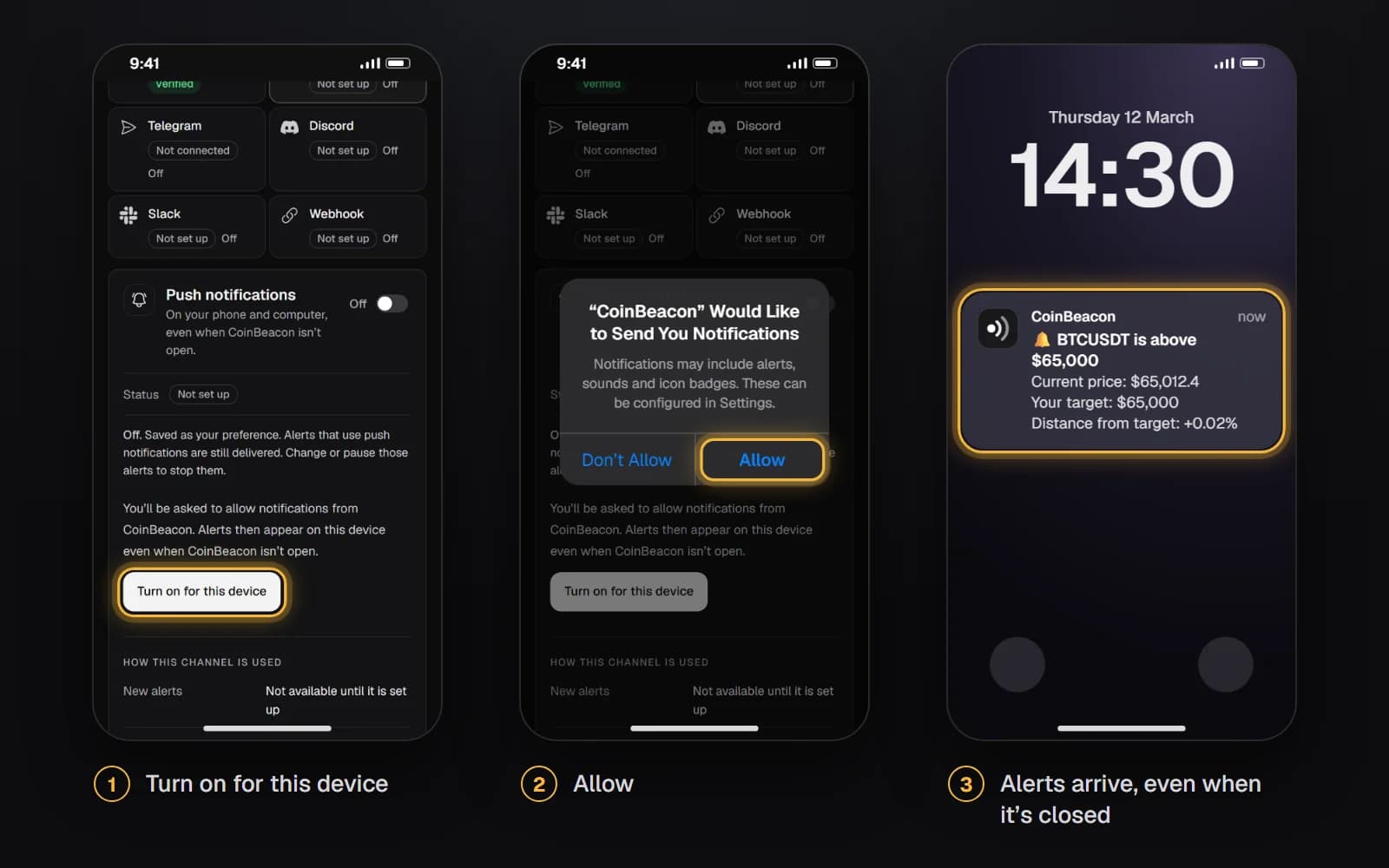
Up to 10 devices per account can have them on, and Settings lists each one with the day it was added and its last notification. On a computer, notifications arrive while the browser is running, even in the background. If a device is off or the browser is closed, a notification waits up to 12 hours and then shows with a note saying how long ago the alert triggered.
Send your alerts by push
Every alert sends to one channel. Pick Push notifications in an alert’s “Notification channel” field, or make it the default for new alerts in Settings › General › Alert defaults › Delivery channel. A push notification counts toward the free plan’s 10 notifications a day like any other channel; the channels guide compares push with Telegram, Discord, Slack, email and webhooks.
When notifications don’t arrive
- They were blocked when asked. On iPhone and iPad, allow them in Settings › Notifications › CoinBeacon. In a browser, open the site settings from the icon next to the address and set Notifications to Allow. Then choose Turn on for this device again.
- Focus or Do Not Disturb is on. The device holds notifications back while it is. Add CoinBeacon, or your browser on a computer, to the allowed apps if you want alerts to come through.
- The device isn’t in the list. Settings › Notifications › Push lists every device that has them on. If yours is missing, turn it on again from that device.
- Every device was removed. When no device can receive them any more, alerts that use push move to email the next time one triggers, and you get one email saying so. If your email isn’t verified, they pause instead.
Removing the app
Remove CoinBeacon like any other app: on a phone, touch and hold its icon; in the Chrome or Edge app window, open the menu and choose Uninstall. On iPhone and iPad that ends its notifications too. On Android and computers the app shares the browser’s notifications, so turn them off in Settings first if you no longer want them there.