How to use a crypto screener to find coins that match your rules
Jordan Ellis
Senior Product Marketing Manager, CoinBeacon
CoinBeacon’s Screener lists every coin it tracks, one row each, and keeps only the coins that meet the conditions you set. The film above walks through it from the first preset to an alert, and this page covers the same ground in writing.
What the Screener shows
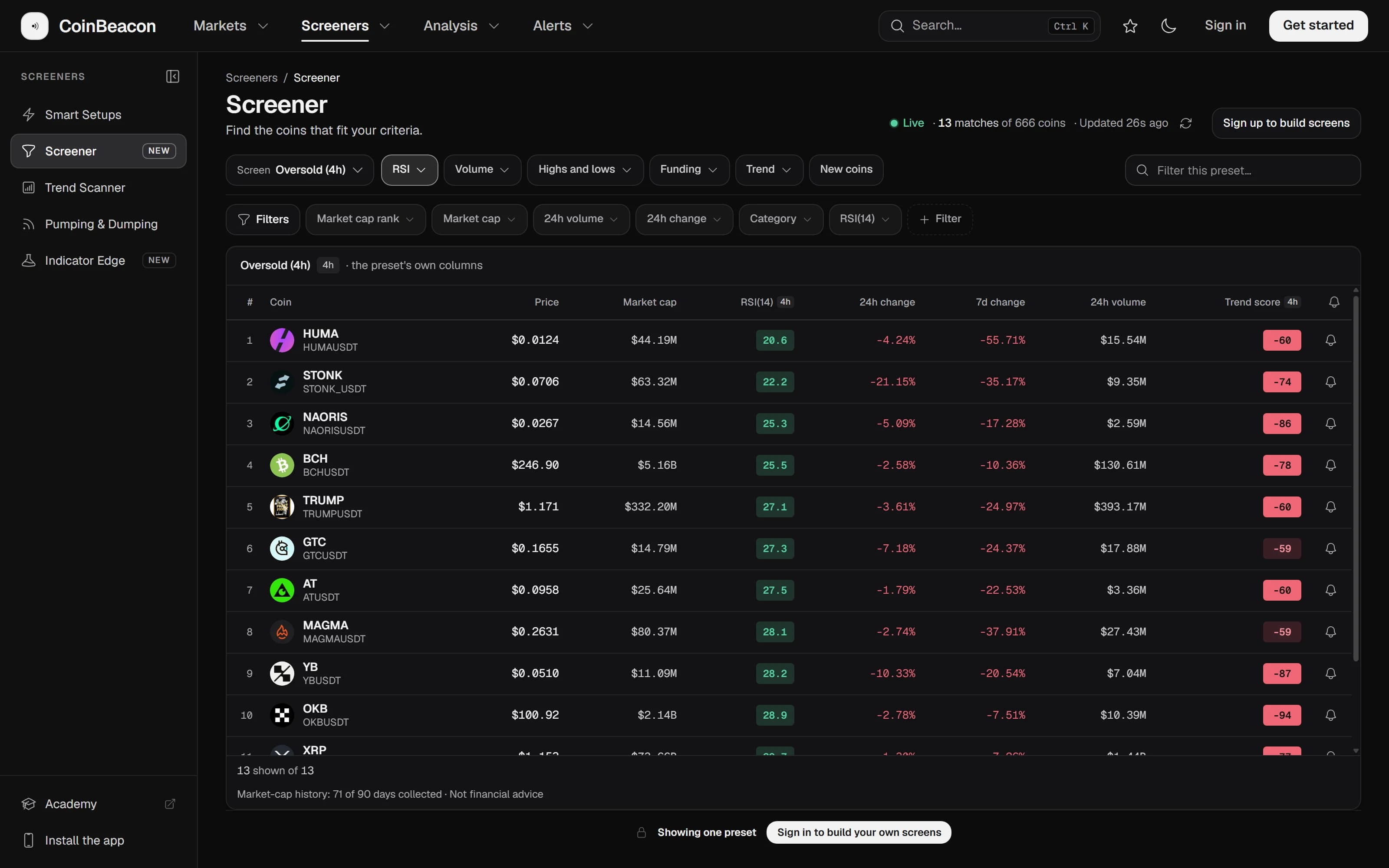
In the app, the Screener is under Screeners. Each row is one coin with its price, market cap, 24-hour and 7-day change and 24-hour volume, and the header says how many coins are on the board and when it last updated. The board is rebuilt every minute, and the page asks for the new one every 30 seconds while you are signed in, or every 60 seconds signed out, while its tab is in view.
Start from a preset
A preset is a ready-made screen. There are 17, in six menus above the list, and each one says what it looks for:
- RSI. Oversold (4h), Deeply oversold (4h) and Overbought (4h).
- Volume. Volume surge, 10x volume day and High turnover.
- Highs and lows. Capitulation, Near all-time high, Deep drawdown and Volume at the lows.
- Funding. Expensive longs and Negative funding, for perpetual futures.
- Trend. Fresh momentum, Volatility squeeze, Golden cross (1d) and Ichimoku cross (1d).
- New coins. Coins listed in the last 90 days.
Pick one and the list keeps only the coins that match, with the columns that preset needs. Oversold (4h), for example, keeps coins whose RSI is below 30 on the 4-hour chart and whose market cap is above $10M, with the RSI right after the market cap. Signed in, a preset loads as ordinary filters you can change; click the lit preset again to clear it. The RSI guide covers what happened after readings like these.
Narrow it with the quick filters
The bar above the list holds quick filters for market cap rank, market cap, 24-hour volume, 24-hour change, category and RSI(14). Each opens with ready-made choices:
- Market cap rank. Top 10, 50, 100, 200, 500 or 1000.
- Market cap. Large caps above $10B down to nano caps under $10M, or over $100M or $1B.
- 24h volume. Over $1M, $10M, $100M or $1B, or Thin, under $1M.
- Category. Tags such as DeFi, Binance Alpha, AI & Big Data, Layer 1, Memecoins and Layer 2.
- RSI(14). From Deeply oversold, under 20, to Extremely overbought, above 80.
Manual setup, at the bottom of a menu, takes an exact condition instead, such as above, below, between or outside a number you type.
Build your own screen
Filters opens the panel where a screen is built. A condition can use any of 115 metrics in six groups: overview figures such as market cap and supply, price and market cap changes over time, technical indicators, volume, derivatives such as funding and open interest, and distance from the all-time high and low. Indicators are read on the timeframe you give each condition: 15m, 1h, 4h, 1d or 1w.
There is no Apply button. Each change runs the screen again, and the count at the top of the panel says how many coins match now. Conditions under “Filters every coin must match” all have to hold. When a coin needs to meet only one of several, put them in an OR group (Add an OR group), which reads “And at least one of these”. Clear all starts over, and Expand widens the panel.
Columns and sorting
Six tabs above the table switch its columns: Overview, Performance, Technicals, Volume, Derivatives and ATH / ATL. Performance adds 30-day changes and volatility, Technicals adds readings such as RSI, trend score and Supertrend, Derivatives adds funding, open interest and liquidations, and ATH / ATL adds the drawdown from the all-time high, the days since it and the distance from the 52-week high and low. A preset shows its own columns until you pick a tab.
Signed in, click a column’s header to sort by it, highest first, and click again to reverse. Rows come 50, 100 or 200 to a page.
Inspect a coin
Pick a coin to open its details. You get its chart, with candles from 15 minutes to a week, and the screener’s reading for that coin: the same numbers as its row, on the same timeframe.
Create alert, in the same panel, opens an alert already set to that coin: a price level filled in at the current price, an RSI alert, a percentage move, a funding rate alert when the coin has a perpetual, or, when a screen is in force, a multi-condition alert holding its conditions on that coin alone.
Save a screen
When a screen is worth keeping, Save screen names it and puts it under Your screens in the Screen menu, one click away next time. An account holds up to 20.
Get a message when a coin enters
Create alert, at the top of the page, turns the whole screen into an alert. It keeps the screen’s conditions as they are, and whether stablecoins are hidden; sorting, columns and search are left out, because they change what the page shows, not which coins are in the screen. You get a message whenever a coin newly enters the screen, watching every coin on the Screener, coins you choose, or one of your watchlists.
- The first check sends nothing. It records which coins are already in the screen, so you hear about new arrivals rather than a list of everything that already matches.
- Indicators are read on closed candles. A coin enters when a candle closes inside the screen, not the moment a live reading dips in.
- The message shows why. The coin, its price and 24-hour change, each condition’s reading, and a link that opens the screen.
Messages go wherever your other alerts do; the channels guide covers email, push notifications, Telegram, Discord, Slack and webhooks. A screen alert is a multi-condition alert, so it can be edited from your alerts like any other.
With and without an account
Signed out, you can:
- Run every preset. All 17, each with its own columns.
- See the first 20 coins of each. Searching the preset looks through its first 100.
- Inspect any coin. Its chart and the screener’s reading.
A free account adds the quick filters and the Filters panel, sorting and longer pages, up to 20 saved screens, and alerts on a screen or a coin.